How to Connect Git Provider Accounts in Commit+
Connect Your Git Provider Accounts to Commit+
Commit+ makes it easy to work with your repositories across multiple Git providers. By connecting your accounts, you can clone, fetch, push, and pull without repeatedly entering credentials. This guide walks you through connecting GitHub, GitLab, and Bitbucket accounts using OAuth device flow.
Step 1: Open the Connections Panel
From the Commit+ menu bar, open your account menu and select Connections... to access the Git Provider Accounts settings.
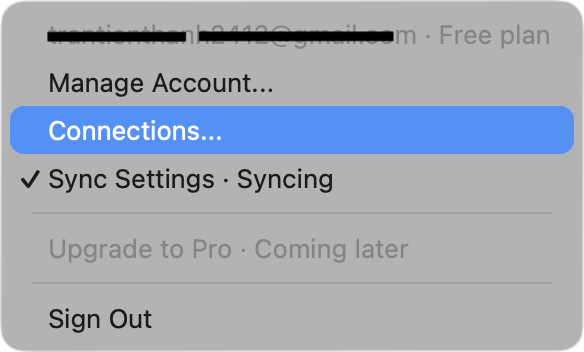
Step 2: Manage Existing Accounts or Add New
In the Connections window, you'll see any previously connected accounts. You can edit or remove existing ones, or tap the + Add button to connect a new provider.
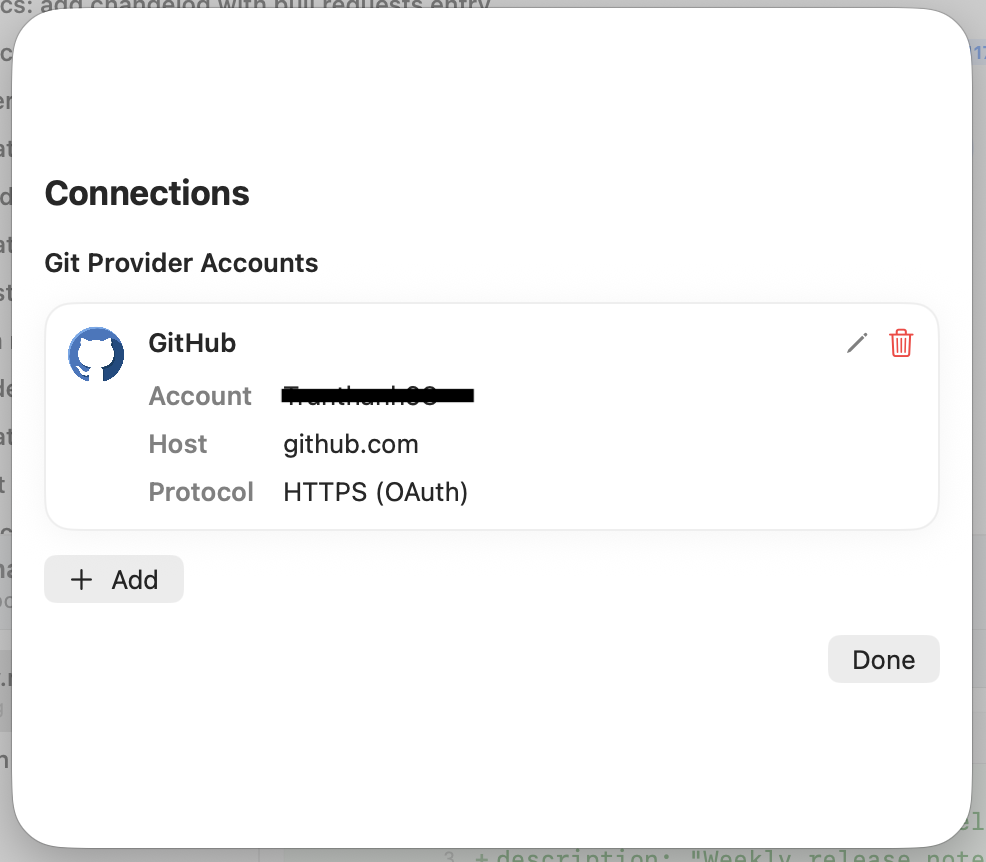
Step 3: Select Your Provider and Authentication
Choose your Git provider from the Host dropdown—Commit+ supports GitHub, GitLab, and Bitbucket. Select OAuth as the auth type and your preferred protocol (usually HTTPS), then click Connect Account.
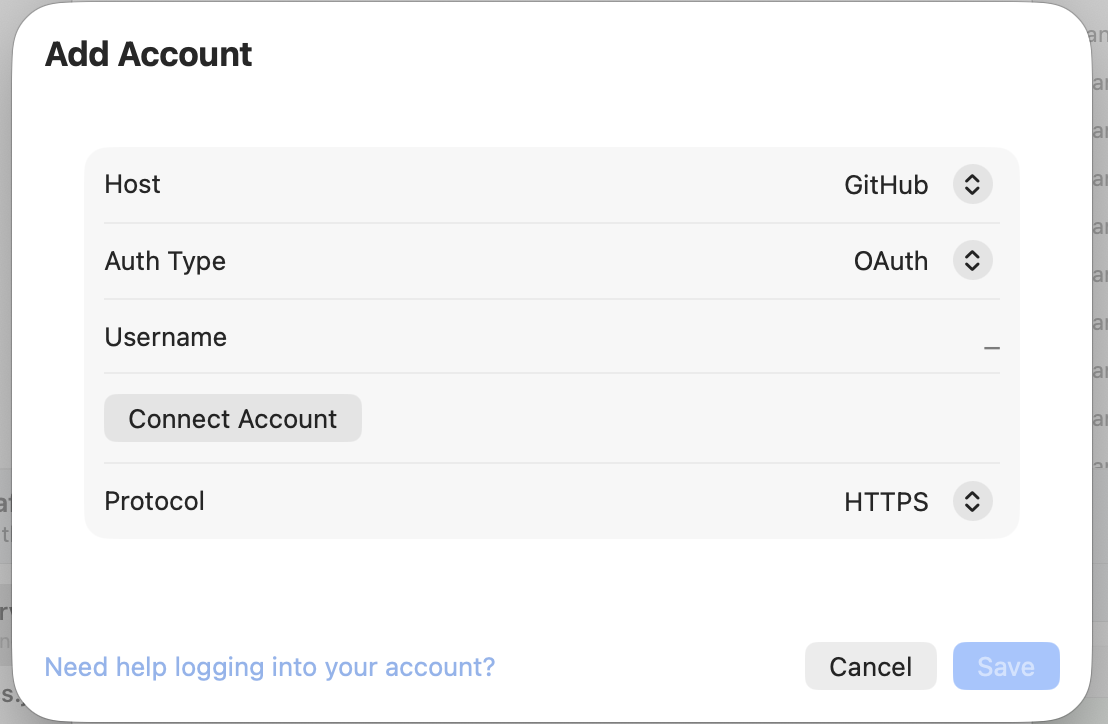
Step 4: Authorize on the Provider Website
Commit+ will display an authentication code and open your provider's device activation page. Sign in if needed, then continue to the authorization step.
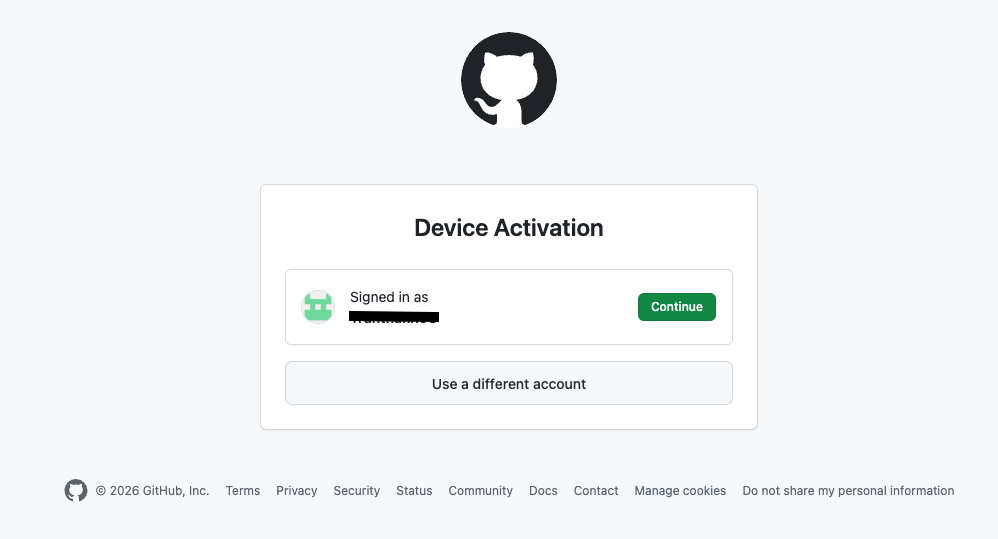
Step 5: Copy the Authentication Code
Back in Commit+, copy the device code shown in the connection dialog. This code is unique to your current connection request.
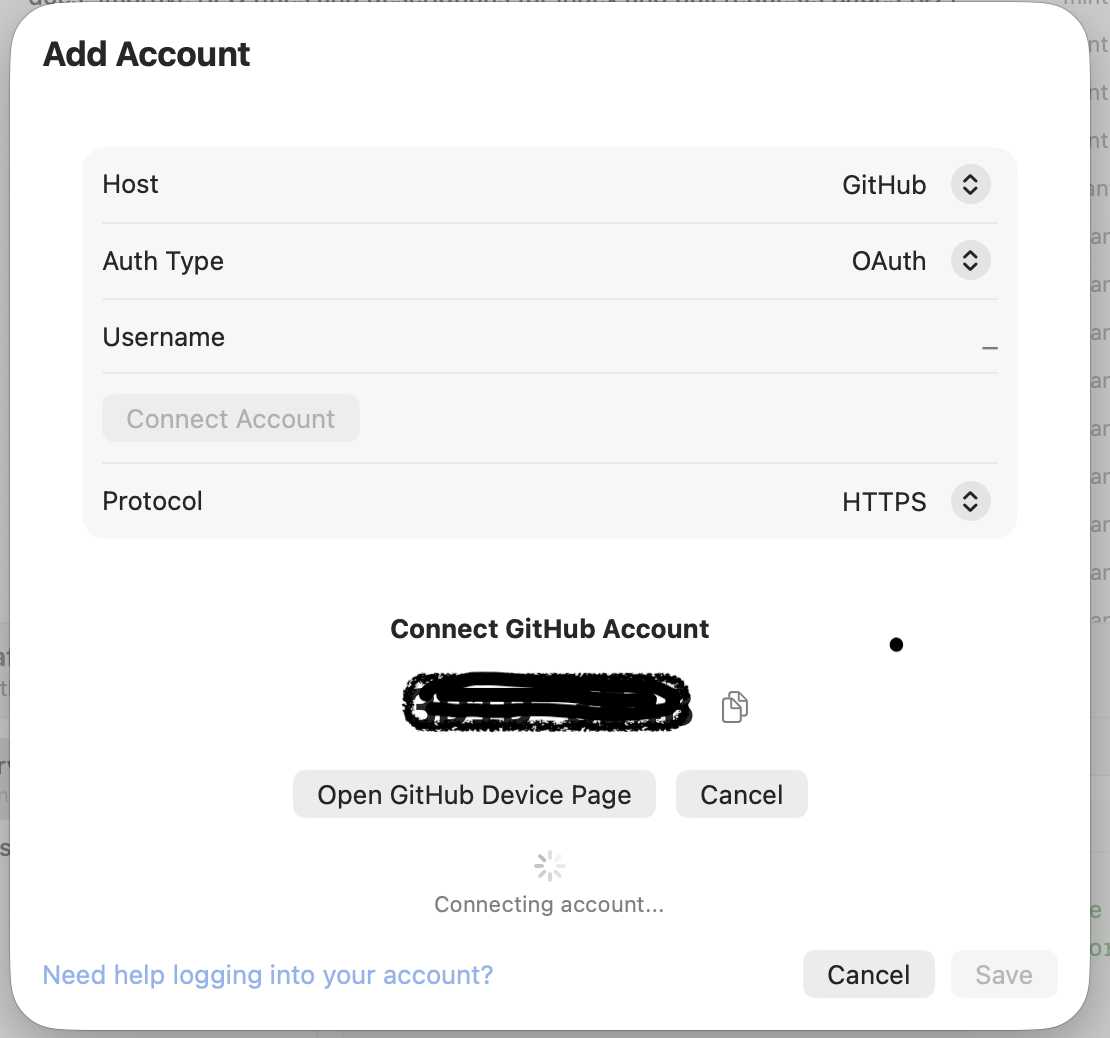
Step 6: Paste the Code and Complete Authorization
Paste the copied code into your provider's authorization page and click Continue. Once approved, Commit+ will finish connecting the account automatically.
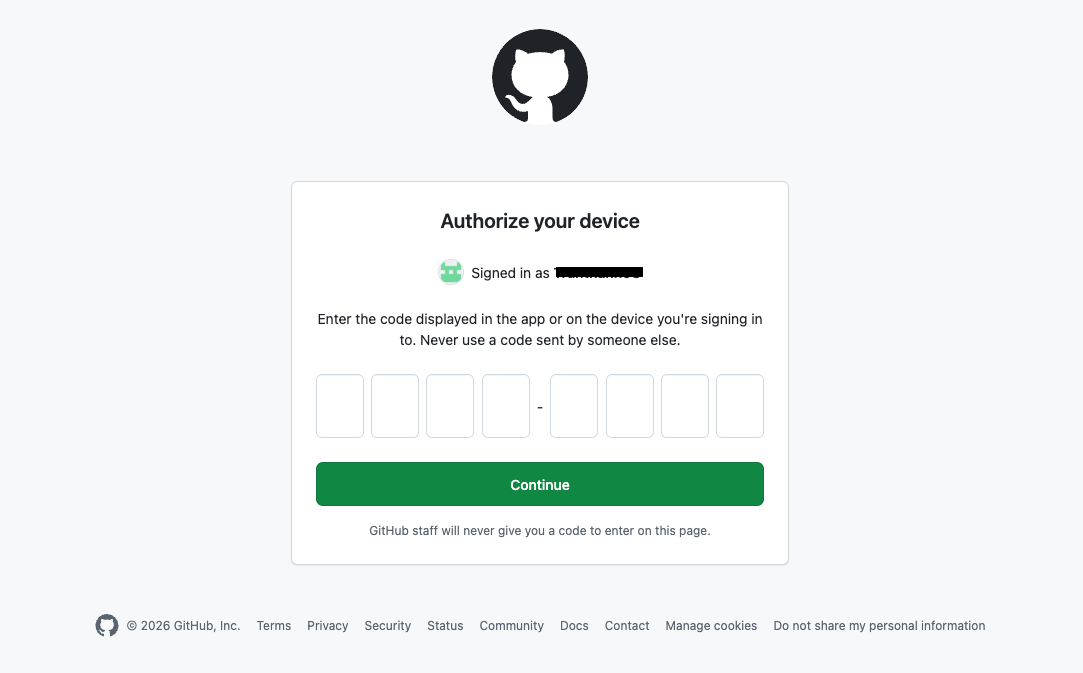
Supported Providers
- GitHub: Use OAuth device flow or a personal access token for secure access.
- GitLab: Connect via OAuth or token-based authentication for self-hosted and cloud instances.
- Bitbucket: Support for OAuth and app passwords depending on your workspace setup.
Tips for a Smooth Setup
- Make sure you are signed into the correct provider account in your default browser before starting.
- If you use multiple accounts, add each one separately and give them clear names.
- For self-hosted GitLab or Bitbucket Server, enter your custom host URL in the configuration.
That's it! Your Git provider accounts are now connected to Commit+, and you can start cloning and working with repositories right away.
Thanh Tran
Passionate developer and creator of Commit+. Focused on building beautiful and performant macOS applications.